

Description: This section will guide the admin through the steps of editing a product.
Prerequisites: The admin must be logged in
Steps:
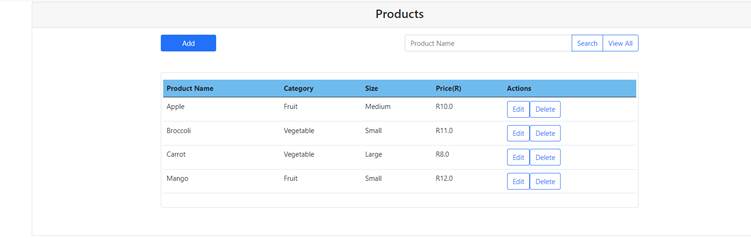
• Step 1: The admin clicks on the “Products” option on the features sidebar.
• Step 2: The products screen is displayed, and the admin will then press on the add button.
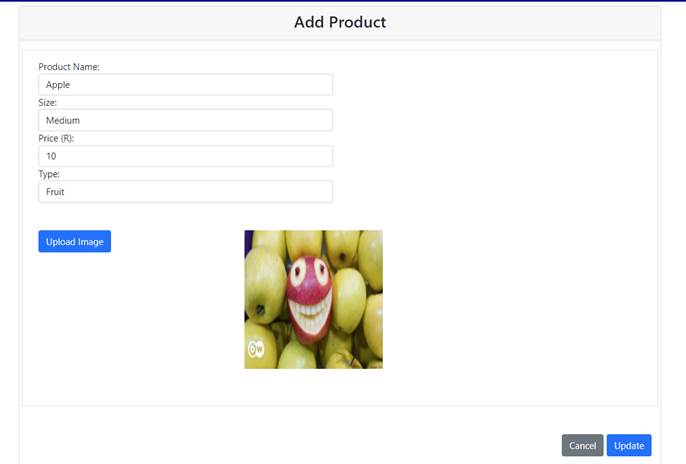
• Step 3: they will be redirected to the add product screen where they will put all the product information
• Step 4: they will then press the save button to save the product details into the database.
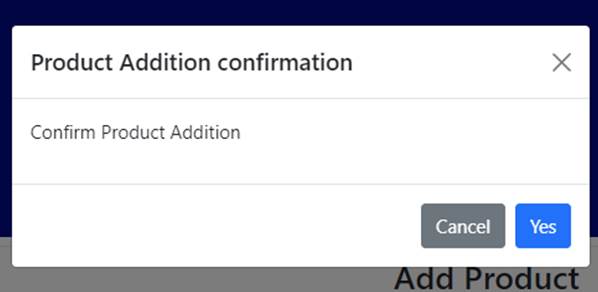
• Step 5: they will confirm adding the product
• Click the Edit button on the Products screen.
• Edit the banana product we previously made
|
Field |
Test Data |
|
Product Name |
Bananas |
|
Size |
Large |
|
Price |
25 |
|
Type |
Fruit |
|
Image |
Bananas.jpg |
• Click the save button to add the product.
Summary
You have now learnt how to edit a product successfully with its corresponding details.
• In order to successfully edit a product all, the required fields need to be provided in the correct format.
This document is created with Softany WordToHelp trial version. (The registered version will not show this message!)