

Description
This section will guide the client through removing an item from their cart on the Louman Website.
Prerequisites
• Client must be logged into the system
• The product must be added to the client’s cart
Removing item from cart process
Step 1: Select the products option on the side bar.
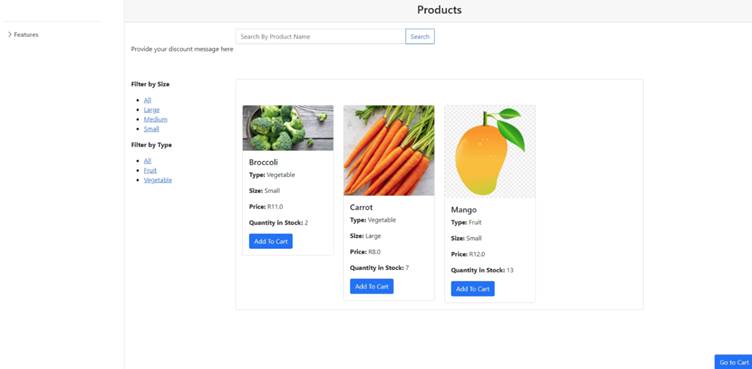
Step 2: Select the go to cart button.
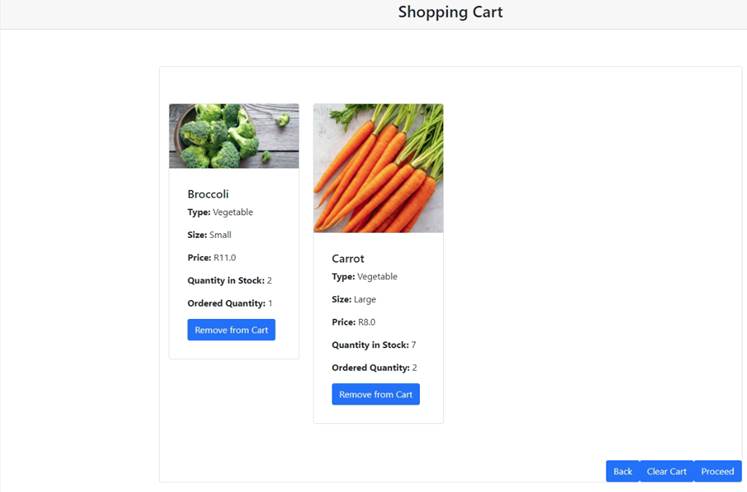
Step 3: Click on the remove from cart button underneath the item the client wants to remove.
Step 4: Click on the yes button on the confirmation notification to confirm the update or the cancel button to return to the view team screen.

Exercise
• Click on the go to cart button the product screen.
• Click the remove from cart button under the product to be removed.
• Click the remove button to remove the item.
• Click the Cancel button to return to the Products screen.
Summary
You have now learnt how to remove an item from the cart successfully.
This document is created with Softany WordToHelp trial version. (The registered version will not show this message!)