

Description
This section will guide the admin through adding a new user role on the Louman Website.
Prerequisites
Admin must be logged into the system
Adding a new role process
Step 1: Select the manage roles option on the side bar.
Step 2: Select the add button on the roles screen.
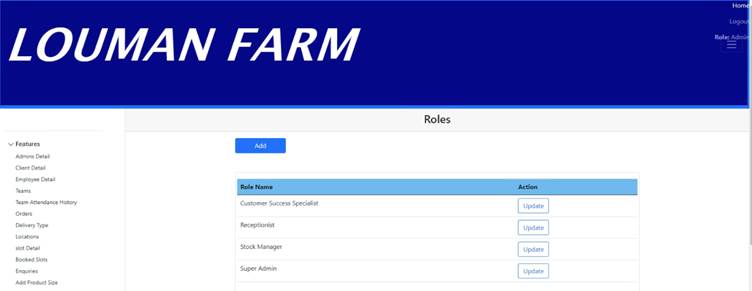
Step 3: Enter information in all the empty text fields, all fields need to be populated with the correct information relating to the role being added.

Step 4 : Click on the Save button to proceed with the role addition or the Cancel button to stop the process.
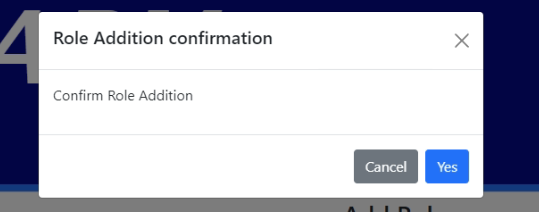
Step 5: Click on the yes button on the confirmation notification to confirm the addition or the cancel button to return to the add role screen.
Exercise
• Click the Add button (top left) on the roles screen.
• Submit new type details with the following details:
|
Field |
Test Data |
|
Role name |
Stock manager |
• Click the save button to add the type.
• Click the Cancel button to return to add role screen.
Summary
You have now learnt how to add a new user role successfully.
This document is created with Softany WordToHelp trial version. (The registered version will not show this message!)