

Description
This section will guide the admin through updating an existing teams’ details on the Louman Website.
Prerequisites
• Admin must be logged into the system
• Team must exist on the system
Updating team details process
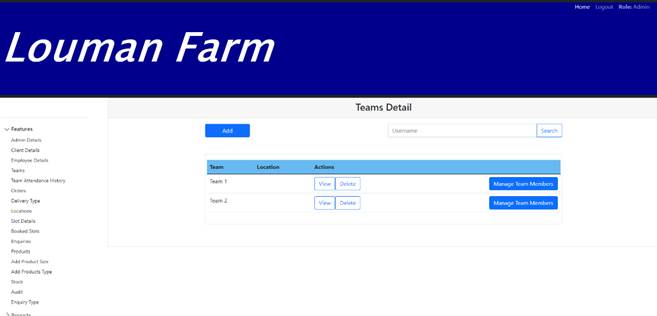
Step 1: Select the team’s option on the side bar.
Step 2: Select the view button in the team’s detail table on the team’s detail screen.
Step 3: Change the relevant details on the view team screen.
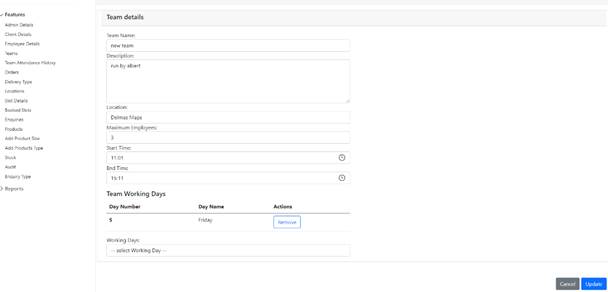
Step 4 : Click on the Update button to proceed with the team update or the Cancel button to stop the process.
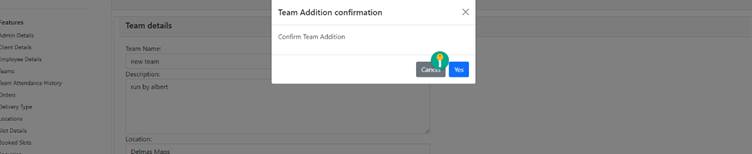
Step 5: Click on the yes button on the confirmation notification to confirm the update or the cancel button to return to the view team screen.
Exercise
• Click the view button on the team detail screen in the table.
• Update the team with the following details:
|
Field |
Test Data |
|
Team name |
Team 2 |
|
Description |
This team is run by Luis |
|
Location |
Pretoria |
|
Maximum employees |
50 |
|
Start time |
8:30 |
|
End time |
16:30 |
• Click the update button to update the team.
• Click the Cancel button to return to teams detail screen.
Summary
You have now learnt how to update a team’s details successfully.
In order to successfully update a team all, the required fields need to be provided in the correct format.
This document is created with Softany WordToHelp trial version. (The registered version will not show this message!)